
Guide to Logging Into ChatGPT EDU
Login Video Tutorial
Once you receive your CES account approval email, you can log in to your CES ChatGPT account and start using it immediately. Follow the video instructions or follow the step-by-step tab to access your new account.
NOTE: If you are a BYU Pathways user, the process for logging in is different. Follow the Pathway step-by-step walkthrough.
Login Step-By-Step Guide
1. Once approved for a license, you will receive an email invite from OpenAI to access your new account.

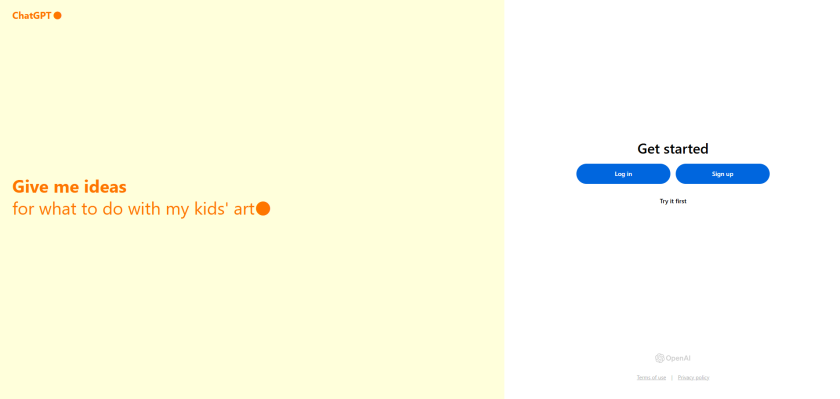
2. The confirmation email will take you to a ChatGPT screen with the following notice. Once on this screen, select "Log in" located on the right side of the page.

3. In the "Email address or phone number" input box, enter your institutional NetID or Username using the example below for your CES institution and select "Continue".
It is important to note that you must use the same netid@school.edu that you gave in the ChatGPT Edu Registration form. Be sure to enter this information in the "E-mail address or phone number" text box. Do not use the social login buttons (Google, Microsoft or Apple).

| For BYU | This is your netid@byu.edu (not your email address or email aliases) |
| For BYU-Idaho | This is your username@byui.edu (not your email address or email aliases) |
| For BYU-Hawaii | This is your netid@byuh.edu |
| For Ensign College | This is your netid@ensign.edu |
| For BYU-Pathway | This is your netid@byupathway.edu |
4. After inputting your NetID@school.edu, it will ask you how you want to log in. Choose the first option: "Church Educational System". This is the CES Single Sign-on (SSO) option.

5. A screen will then appear that asks you to select your CES institution. Select your home institution.

6. Once all other steps have been completed, you will then have access to your ChatGPT Edu account. If after signing in you are not shown a confirmation message that you have been added to CES ChatGPT, please refresh your screen.

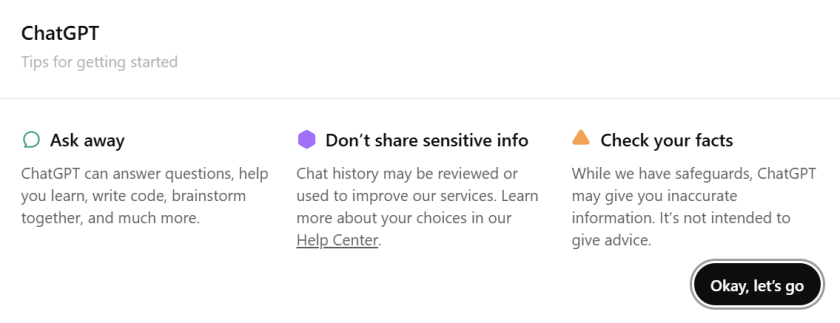
Another confirmation message (like the message shown below) may also appear and will mention restrictions on sensitive data in ChatGPT Edu due to model training. However, you may disregard this message as the current CES contract with OpenAI features increased data privacy and disables the option for model training. Click the "Okay, let's go" button to begin using ChatGPT Edu.
Note: When your ChatGPT Edu account is activated, any existing ChatGPT Plus/Free accounts registered with the same email you provided will be retired and your conversations will be migrated to your new Edu account. Any remaining credit on your previous account will be refunded back to you by OpenAI.
ChatGPT Edu also has multiple desktop and mobile applications available. All login instructions across applications remains the same.